Table of contents
- Why AI Traffic Is Invisible in GA4 by Default
- The AI Referral Sources Worth Tracking (With Regex Pattern)
- How to Check Traffic from Claude in GA4
- How to Check Traffic from Perplexity in GA4
- How to Check Traffic from ChatGPT in GA4
- How to Track Gemini Search Traffic in GA4
- Can You See Keywords from ChatGPT or Perplexity Traffic?
- 3 Ways to Track AI Traffic in GA4 (Fast, Better, Best)
- GA4 Setup Checklist: Custom Channel Group for AI Traffic
- How AI Traffic Flows Into GA4: A Simple Attribution Diagram
- Revenue and Conversion Attribution for AI Traffic
- What AI Traffic Tracking Still Misses (And How to Work Around It)
- Frequently Asked Questions
- Getting Started: Your Next Three Steps
Something is sending qualified visitors to your website right now, and your analytics are almost certainly misreporting it.
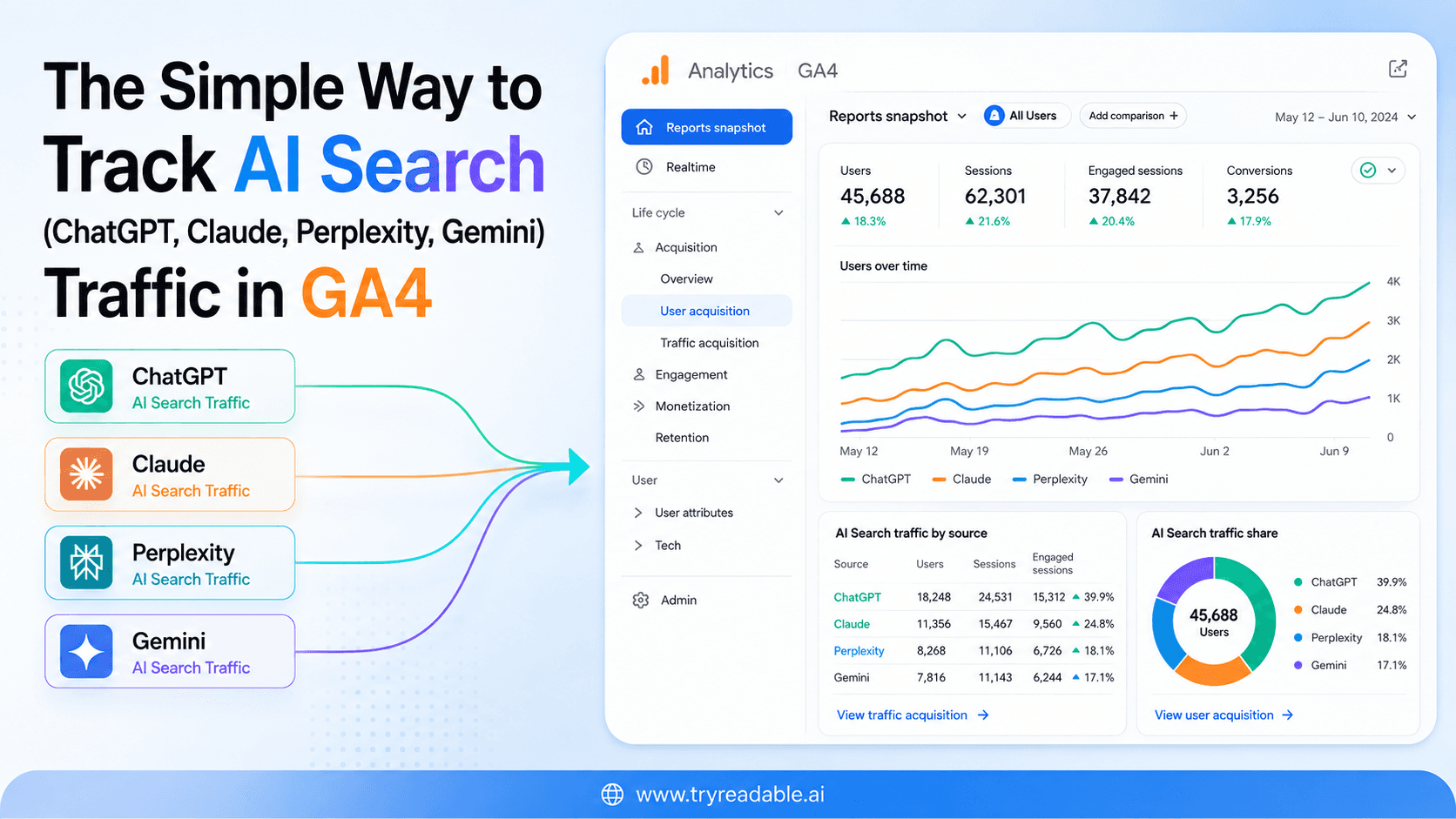
ChatGPT, Perplexity, Claude, and Gemini are increasingly acting as the first stop in the buyer journey. A user asks a question, an AI assistant cites your content, the user clicks through, and they land on your site already primed with context. That is a high-intent visit. But in Google Analytics 4, it is probably showing up as generic referral traffic, or worse, as direct.
This guide gives you everything you need to fix that: a copyable regex pattern, a reference table of AI referral sources, three methods ranked by effort, a written setup checklist, and an honest account of what GA4 still cannot tell you. No screenshots required. Just patterns you can paste and instructions you can follow.
Why AI Traffic Is Invisible in GA4 by Default
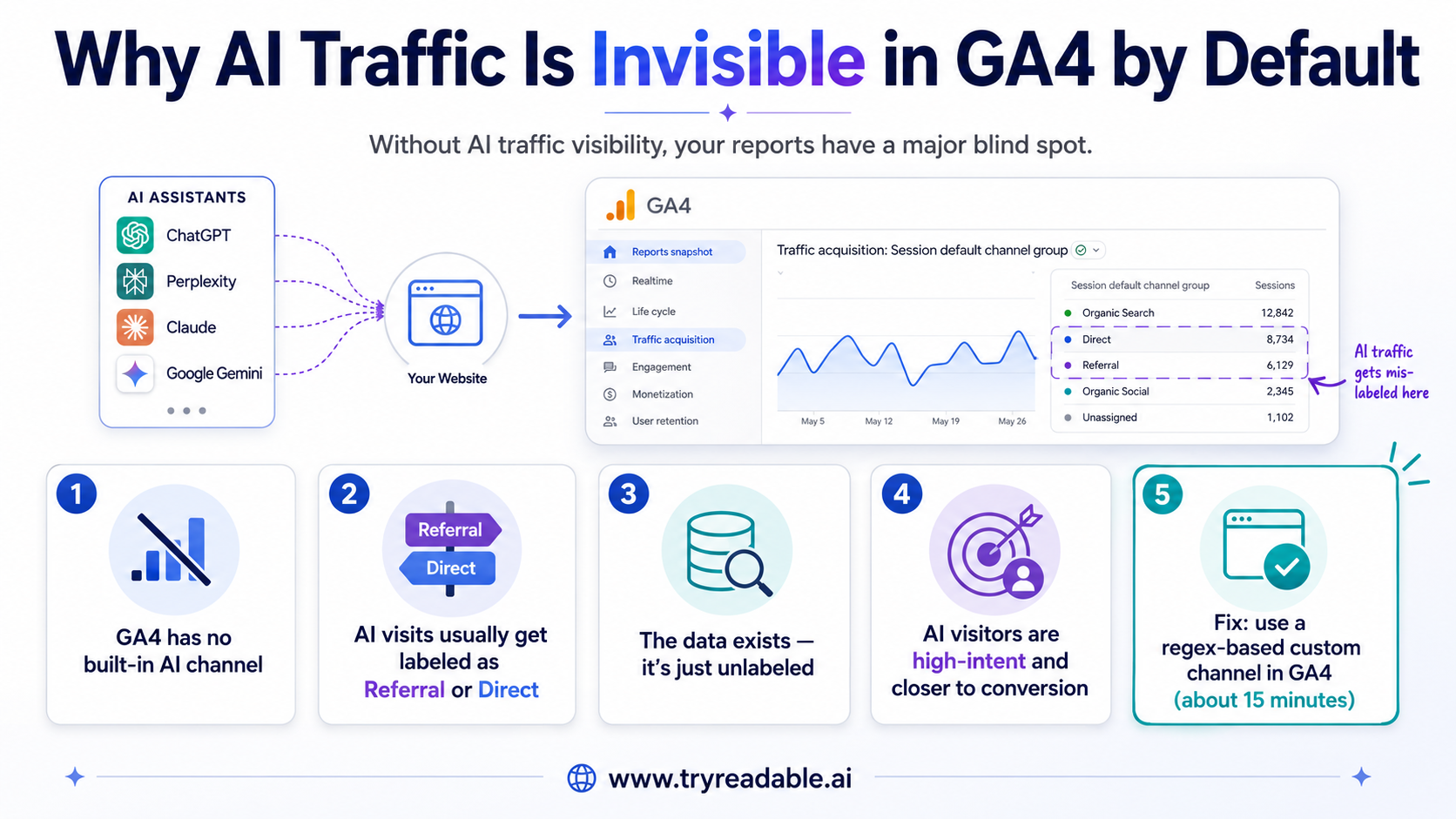
GA4 was built around a channel taxonomy that predates the current wave of generative AI tools. Its default channel groupings include Organic Search, Paid Search, Direct, Referral, and Social, but there is no built-in AI channel. When a user clicks a link cited in a ChatGPT response or a Perplexity answer, that session lands in one of two buckets depending on how the referrer header is handled.
If the AI platform passes a referrer header, GA4 classifies the session as Referral and buries it inside a long list of other referring domains. If the referrer header is stripped, which happens frequently with desktop apps and some browser configurations, the session appears as Direct. Either way, the signal is invisible unless you go looking for it.
According to Analytics Mania, GA4's standard reports categorize visitors from AI platforms like ChatGPT or Gemini as general referral traffic, making it difficult to understand the true impact these tools have on your website. The problem is not that the data is missing. It is that the data is unlabeled.
This matters more than it might seem. Visitors arriving from AI assistants are behaviorally different from typical referral traffic. They have already received an answer to their question. The AI has done the awareness and consideration work. By the time they click through to your site, they are closer to a decision than almost any other channel can deliver. As Intender puts it, someone who clicks through from an AI assistant has already had their question answered and is closer to a decision than almost any other channel.
If you are optimizing your content strategy, your conversion funnel, or your acquisition mix without visibility into AI traffic, you are making decisions with a significant blind spot. The fastest-growing discovery channel in marketing right now is showing up in your reports as a rounding error.
The fix is not complicated. It requires a regex pattern, about fifteen minutes in GA4 Admin, and a clear understanding of what you are looking for.
The AI Referral Sources Worth Tracking (With Regex Pattern)
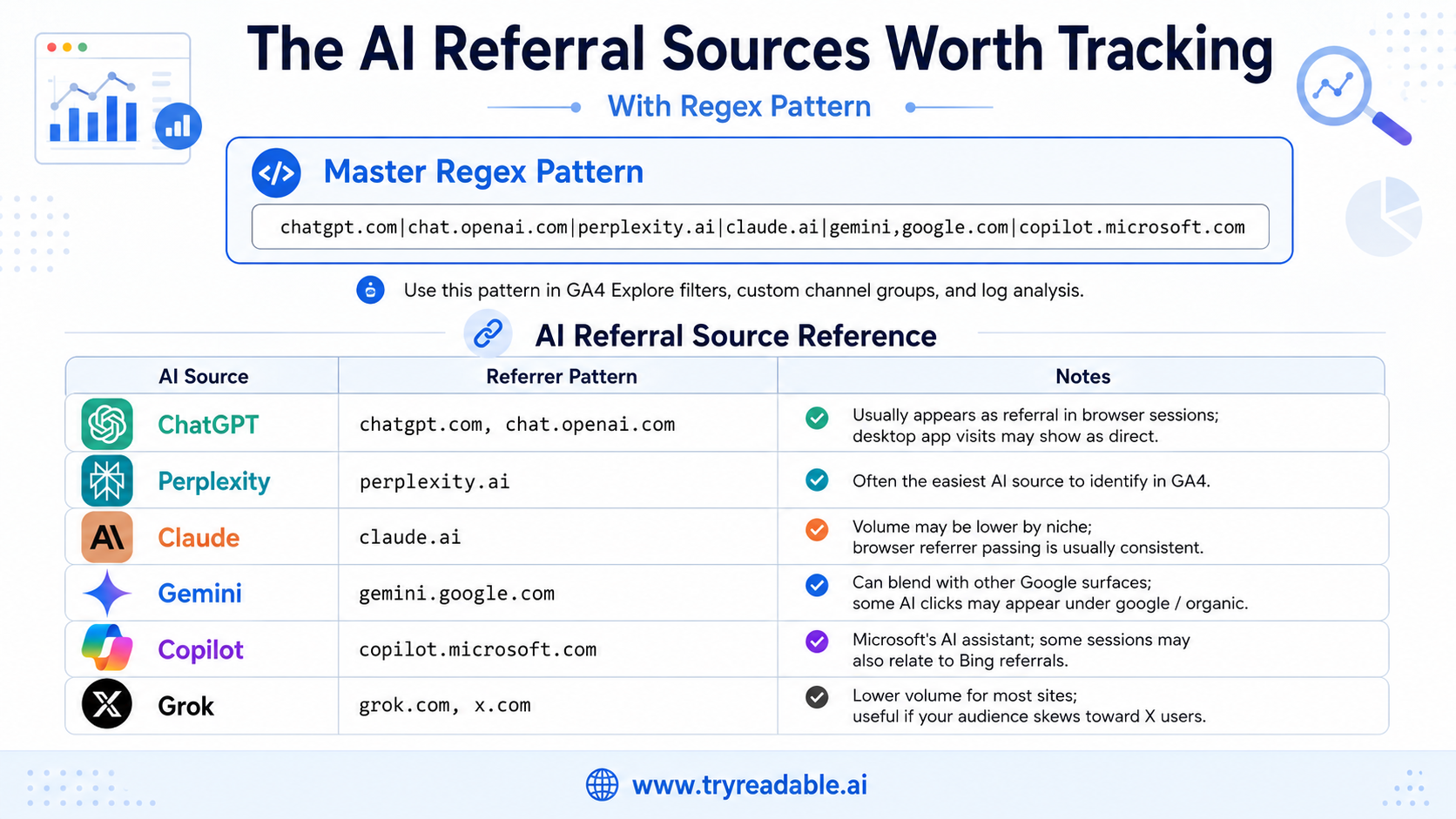
Before you open GA4, you need the raw material: the referrer domains associated with the major AI platforms. Here is the master regex pattern you will use throughout this guide.
chatgpt.com|chat.openai.com|perplexity.ai|claude.ai|gemini.google.com|copilot.microsoft.com
Copy this pattern and keep it somewhere accessible. You will use it in GA4 Explore filters, custom channel group rules, and potentially in server-side log analysis.
AI Referral Source Reference Table
| AI Source | Referrer Pattern | Notes |
|---|---|---|
| ChatGPT | chatgpt.com, chat.openai.com | Usually appears as referral in browser sessions; desktop app sessions may appear as direct |
| Perplexity | perplexity.ai | Tends to pass cleaner referrer headers; often the easiest AI source to identify in GA4 |
| Claude | claude.ai | May show low volume depending on your niche; referrer passing is generally consistent in browser |
| Gemini | gemini.google.com | Can blend with other Google surfaces; AI Overview clicks may appear under google / organic |
| Copilot | copilot.microsoft.com | Microsoft's AI assistant; Bing-integrated sessions may also appear under bing referral |
| Grok | grok.com, x.com | Lower volume for most sites; worth adding if your audience skews toward X users |
A few behavioral notes worth understanding before you set anything up.
Perplexity is generally the most trackable AI source. It consistently passes referrer headers in browser sessions, which means its traffic tends to surface clearly in standard referral reports even without custom configuration. Hedgehog Marketing confirms that Perplexity referrals are among the more straightforward to identify in GA4.
ChatGPT is the highest-volume AI source for most sites, but it is also the most inconsistent. Browser-based sessions on chatgpt.com typically pass a referrer. Sessions from the ChatGPT desktop app or mobile app often strip the referrer entirely, appearing as direct traffic. This means your GA4 data will undercount ChatGPT traffic by a meaningful margin.
Gemini presents a different problem. Google's AI surfaces are fragmented across Gemini, AI Overviews in Search, and other Google products. Clicks from AI Overviews in standard Google Search may be attributed to google / organic rather than gemini.google.com, making it difficult to separate AI-assisted discovery from traditional organic search. FatJoe notes that GA4 currently categorizes generative AI traffic as referral rather than organic search, but the Gemini and AI Overviews boundary remains murky.
Claude typically shows lower volume than ChatGPT or Perplexity for most sites, but the referrer passing is reasonably consistent in browser sessions. If your content is being cited in Claude's responses, you should see it in referral data.
Copilot traffic may appear under copilot.microsoft.com or under Bing-related referrers depending on how the user accessed the AI. Adding both patterns to your regex is a reasonable precaution.
If you want to expand your regex to include additional sources like Grok, you can extend the pattern:
chatgpt.com|chat.openai.com|perplexity.ai|claude.ai|gemini.google.com|copilot.microsoft.com|grok.com
For most founders and marketers, the core six-source pattern is sufficient to start building meaningful visibility.
How to Check Traffic from Claude in GA4
Claude traffic arrives via the referrer domain claude.ai. When a user reads a Claude response in their browser and clicks a cited link, the browser sends a Referer header containing claude.ai, and GA4 records the session under that source.
Here is the fastest way to check your Claude traffic right now:
- Go to Reports in GA4 and open Acquisition > Traffic acquisition.
- Change the primary dimension to Session source / medium.
- In the search bar above the data table, type
claude. - Any rows containing
claude.aiwill appear. Note the session count, engaged sessions, and conversion data.
If you see zero rows, one of three things is true: Claude is not currently citing your content, Claude is citing your content but users are accessing it through the desktop app (which strips the referrer), or your site is too new to have accumulated meaningful AI referral traffic yet.
For ongoing monitoring, add claude.ai to the master regex pattern and build the custom channel group described in the setup checklist below. This ensures Claude traffic surfaces automatically in your standard reports rather than requiring a manual search each time.
One practical note: Claude's referrer passing is reasonably consistent in browser sessions, but the Claude desktop app does not pass referrer headers. If you have reason to believe Claude is citing your content frequently but your GA4 data shows very low Claude traffic, desktop app usage is the most likely explanation.
How to Check Traffic from Perplexity in GA4
Perplexity is the most reliably trackable AI source in GA4. It consistently passes the perplexity.ai referrer header in browser sessions, which means its traffic surfaces in standard referral reports even without custom configuration.
To check your Perplexity traffic immediately:
- Go to Reports > Acquisition > Traffic acquisition in GA4.
- Change the primary dimension to Session source / medium.
- Search for
perplexityin the search bar above the data table. - You should see
perplexity.ai / referralif Perplexity has sent any traffic to your site.
If you want to use Google Analytics 4 to see whether traffic is coming from Perplexity on an ongoing basis, the custom channel group method is the most reliable approach. Once configured, Perplexity sessions will appear as a distinct channel in your standard acquisition reports without any manual filtering.
Perplexity traffic tends to be high-intent. Users on Perplexity are typically in active research mode, and a click-through from a Perplexity citation means the AI judged your content relevant enough to surface as a source. Monitoring Perplexity traffic over time can help you understand which content topics are being cited and whether those visitors are converting.
How to Check Traffic from ChatGPT in GA4
ChatGPT traffic arrives primarily via chatgpt.com for newer sessions and chat.openai.com for older ones. Both domains should be included in your tracking setup.
To check ChatGPT traffic in GA4:
- Go to Reports > Acquisition > Traffic acquisition.
- Change the primary dimension to Session source / medium.
- Search for
chatgptin the search bar. Also search foropenaito catch any sessions attributed to the older domain. - Review the session count and engagement metrics for any matching rows.
The important caveat with ChatGPT is that the desktop app and mobile app do not pass referrer headers. This means a meaningful portion of ChatGPT-sourced traffic will appear as Direct in GA4 rather than as a ChatGPT referral. The volume you see in GA4 is a floor, not a ceiling.
If you want to measure ChatGPT sessions more accurately, the most practical approach is to use UTM-tagged links in any content you control that ChatGPT might cite. When a user clicks a UTM-tagged link, GA4 uses the UTM parameters regardless of what the referrer header says, which captures sessions that would otherwise appear as Direct.
How to Track Gemini Search Traffic in GA4
Gemini traffic tracking is more complex than other AI sources because Google's AI surfaces are spread across multiple products. Traffic from the Gemini web interface at gemini.google.com will appear as a referral in GA4. However, clicks from AI Overviews embedded in standard Google Search results pages may be attributed to google / organic rather than to a Gemini-specific referrer.
To check traffic from the Gemini web interface:
- Go to Reports > Acquisition > Traffic acquisition in GA4.
- Change the primary dimension to Session source / medium.
- Search for
geminiin the search bar. - Look for rows containing
gemini.google.com.
For the custom channel group setup, include gemini.google.com in your regex pattern. This captures direct Gemini referrals but will not capture AI Overview-driven clicks that are attributed to organic Google search.
If you are trying to understand how to get traffic from Gemini or whether Gemini is already sending traffic to your site, the referral check above is the starting point. For a more complete picture of Google AI-driven traffic, monitor your organic search traffic trends alongside your Gemini referral data. If organic traffic is growing without a corresponding increase in traditional search rankings, AI Overviews may be contributing.
Gemini referral links follow the standard HTTP referrer mechanism. There is no special Gemini-specific tracking parameter available in GA4 at this time.
Can You See Keywords from ChatGPT or Perplexity Traffic?
This is one of the most common questions about AI traffic tracking, and the honest answer is: not directly.
GA4 can tell you that a session came from chatgpt.com or perplexity.ai. It cannot tell you what the user asked the AI, which query surfaced your link, or what context the AI provided before the user clicked through. The referrer header carries the source domain, not the prompt or search query.
This is a fundamental limitation of referrer-based attribution, not a GA4 configuration problem. No standard analytics tool can currently recover the prompt-level data from AI referrals.
What you can do instead:
- Analyze landing pages: In your AI traffic Explore report, add Landing page as a dimension. The pages receiving AI referral traffic are the ones being cited. This tells you which topics and content formats AI tools are surfacing.
- Use on-site search data: If your site has a search function and you have GA4 site search tracking enabled, users arriving from AI tools may use your search bar to refine their query. This can give indirect signal about what they were looking for.
- Monitor AI platforms directly: Some teams periodically query ChatGPT, Perplexity, and Claude with their target topics to see whether their content is being cited and in what context. This is manual but provides prompt-level insight that GA4 cannot.
- Use third-party AI visibility tools: Tools designed specifically for AI citation monitoring can track which queries surface your content across AI platforms. These supplement GA4 rather than replacing it.
The landing page analysis is the most actionable approach available within GA4. If you see that a specific blog post is receiving a disproportionate share of your AI referral traffic, that post is likely being cited frequently. Understanding why that post performs well in AI citations can inform your broader content strategy.
3 Ways to Track AI Traffic in GA4 (Fast, Better, Best)
Not everyone needs the same level of setup. Here are three approaches ranked by effort and permanence. Start with the one that fits your current situation and upgrade when you are ready.
Fast Method: Manual Check in Traffic Acquisition
This takes about two minutes and requires no configuration changes. It is useful for a quick gut-check or for sites that are just starting to think about AI traffic.
- Go to Reports in the left navigation of GA4.
- Open Acquisition and then Traffic acquisition.
- Change the primary dimension to Session source / medium using the dimension picker above the table.
- Use the search bar above the data table to search for AI referrer names one at a time: try
chatgpt,perplexity,claude,gemini,copilot. - Note the session counts, engaged sessions, and any conversion data visible in the table.
The limitation of this method is that it is entirely manual. You have to remember to check it, you cannot easily compare AI sources against each other in a single view, and the data does not persist in any organized way. It is a starting point, not a system.
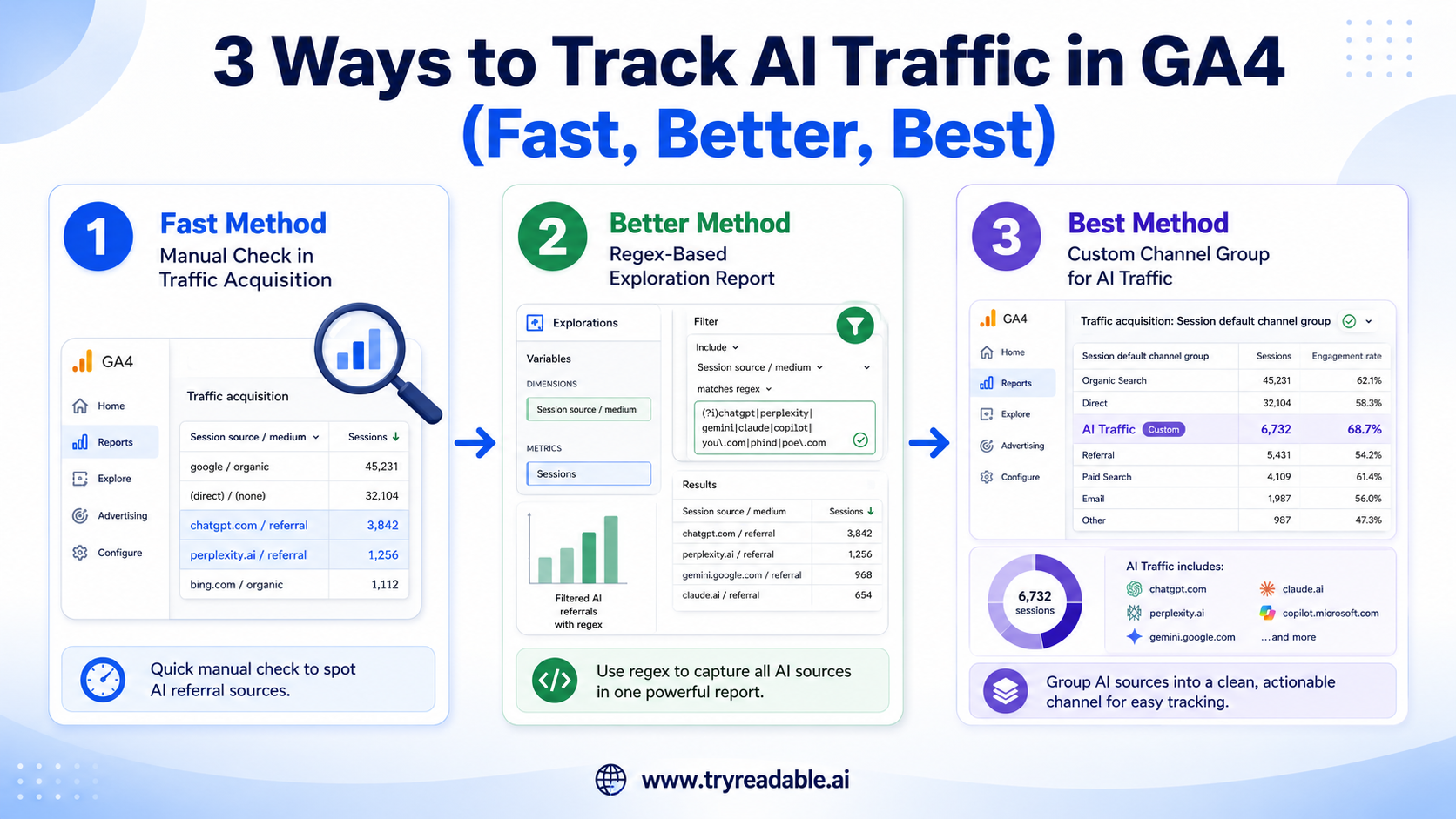
Better Method: Regex-Based Exploration Report
This method takes about ten minutes and gives you a reusable report you can return to without repeating the manual search. It lives in GA4 Explore, which means it does not affect your standard reports but gives you a dedicated view for AI traffic analysis.
- Go to Explore in the left navigation of GA4.
- Create a new Blank exploration.
- In the Variables panel on the left, add the following dimensions: Session source, Session medium, Page referrer.
- Add the following metrics: Sessions, Engaged sessions, Key events (or Conversions if you are using the older terminology).
- Drag Session source into the Rows section of the Tab Settings panel.
- Drag your chosen metrics into the Values section.
- In the Filters section, add a filter: Session source matches regex, then paste the master regex pattern.
- Choose your visualization type. A table works well for comparing sources. A line chart works well for tracking growth over time.
- Name the exploration something memorable like "AI Traffic Sources" and save it.
This report will now be available every time you open GA4 Explore. You can adjust the date range, add segments, or layer in additional dimensions like landing page or device category. Passionfruit recommends this approach for ongoing analysis, noting that it gives immediate visibility into AI referrals without requiring account-level configuration changes.
The downside is that Explore reports are siloed. They do not flow into your standard acquisition reports, and they are not visible to other users in your GA4 property unless you share them explicitly.
Best Method: Custom Channel Group for AI Traffic
This is the permanent solution. A custom channel group tells GA4 to classify AI referral sessions as their own distinct channel, which means AI traffic surfaces automatically across all standard acquisition reports, not just in Explore. This is the method that gives you ongoing visibility without manual effort.
The setup takes about fifteen minutes and is covered in detail in the checklist section below. The key principle is that you are creating a new channel definition that uses your regex pattern as the matching rule, then placing it above the generic Referral channel in the priority order so that AI sessions are classified correctly before they fall through to the default bucket.
Intender describes this as the method that gives you permanent visibility across every standard report in GA4. Hedgehog Marketing confirms that custom channel groups treat AI traffic with the same importance as Organic Search or Paid Social in your acquisition reports.
One important note: custom channel groups apply going forward from the date you create them. They do not retroactively reclassify historical sessions. If you want to analyze historical AI traffic, use the Explore method with the regex filter, which can be applied to any date range.
GA4 Setup Checklist: Custom Channel Group for AI Traffic
Follow these steps in order. Written instructions are sufficient here because the value is in knowing what to configure, not in memorizing where every button lives in the GA4 interface.
Step 1: Navigate to Channel Groups
- Open GA4 and click the gear icon at the bottom left to open Admin.
- Under the Data display section (not Property settings), click Channel groups.
- You will see the default Google channel group. Do not edit this one. Instead, click Create new channel group.
Step 2: Name Your Channel Group
- Give the channel group a clear name such as "AI Traffic Channels" or "Custom Acquisition Channels."
- This is the container. You will add individual channel definitions inside it.
Step 3: Add the AI Search Channel
- Inside your new channel group, click Add new channel.
- Name the channel AI Search or AI Referral. Either works. Be consistent with whatever naming convention your team uses.
Step 4: Define the Matching Rule
- Under the channel definition, set the condition to: Session source matches regex.
- Paste the master regex pattern into the value field:
chatgpt.com|chat.openai.com|perplexity.ai|claude.ai|gemini.google.com|copilot.microsoft.com - If you want to include Grok or other sources, add them to the pattern with a pipe separator before saving.
Step 5: Set Channel Priority
- After saving the channel definition, return to the channel group view.
- Drag the AI Search channel above the generic Referral channel in the priority order.
- This is critical. GA4 applies channel rules in order from top to bottom. If Referral is higher in the list, AI sessions will be classified as Referral before the AI Search rule is evaluated.
Step 6: Save and Publish
- Click Save to publish the channel group.
- Note that the new channel group will take 24 to 48 hours to begin populating with data.
- Once active, you can select this channel group in standard acquisition reports using the channel group selector at the top of the report.
Step 7: Verify and Monitor
- After 48 hours, return to Reports and open Traffic acquisition.
- Switch the channel group to your custom group using the selector.
- You should see AI Search appearing as a distinct channel alongside Organic Search, Direct, and others.
- If AI Search shows zero sessions after 48 hours, double-check the regex pattern for typos and confirm that the channel priority order places AI Search above Referral.
Step 8: Track Conversions by AI Source
- In the Traffic acquisition report with your custom channel group active, look for the AI Search row.
- Review the Key events or Conversions column to see whether AI traffic is completing goals.
- For deeper analysis, build an Explore report that segments by AI source and adds conversion metrics, as described in the Revenue Attribution section below.
This checklist is based on the setup approaches documented by Analytics Mania, Passionfruit, and Intender, adapted into a single sequential checklist format.
How AI Traffic Flows Into GA4: A Simple Attribution Diagram
Understanding the attribution chain helps you interpret your data correctly and identify where the chain breaks. Here is the full path from AI answer to GA4 conversion event.
AI assistant generates answer
        |
        v
Your content is cited with a clickable link
        |
        v
User clicks the link in their browser
        |
        v
Browser sends HTTP request with Referer header
(e.g., Referer: https://chatgpt.com)
        |
        v
GA4 captures the referrer header on page load
        |
        v
Session is attributed to the AI source
(e.g., chatgpt.com / referral)
        |
        v
User completes a conversion or key event
        |
        v
GA4 records the conversion against the AI source
This chain works cleanly when the user is in a browser session on the AI platform's web interface and the platform passes the referrer header. Perplexity and Claude tend to do this reliably. ChatGPT's web interface does as well.
Where the chain breaks:
The chain fails at the referrer header step in several common scenarios.
- Desktop and mobile apps: The ChatGPT desktop app, Claude's desktop app, and similar native applications do not pass referrer headers. Sessions from these sources appear as Direct in GA4. This is the largest source of undercounting for AI traffic.
- Incognito and private browsing: Some browser configurations strip or suppress referrer headers in private mode, causing sessions to appear as Direct.
- Gemini and AI Overviews: Clicks from Google's AI Overviews in standard Search results may be attributed to
google / organicrather than a Gemini referrer, because the click originates from the Google Search results page rather than from gemini.google.com directly. - Link shorteners and redirects: If an AI platform routes clicks through a redirect service, the referrer may be overwritten with the redirect domain rather than the AI platform's domain.
- HTTPS to HTTP transitions: If your site does not use HTTPS, referrer headers from HTTPS sources like chatgpt.com may be stripped by the browser as a security measure.
Even with these gaps, partial visibility is substantially better than no visibility. Most sites currently have zero AI attribution in their analytics. Getting even 60 to 70 percent of AI traffic correctly labeled is a meaningful improvement that enables better content and acquisition decisions.
If you want to understand the scope of your AI traffic more fully, the workarounds in the final section of this guide will help you triangulate beyond what GA4 can see directly.
Revenue and Conversion Attribution for AI Traffic
Counting sessions from AI sources is useful. Connecting those sessions to revenue and conversions is where the real strategic value lies. Here is how to move beyond pageview counting.
Conversion Analysis in GA4 Explore
Build an Explore report that combines your AI source segment with conversion metrics.
- Open Explore and create a new blank exploration.
- Add dimensions: Session source, Session default channel group (using your custom channel group).
- Add metrics: Sessions, Engaged sessions, Key events, Session conversion rate, Average session duration.
- Apply a segment or filter for AI sources using the master regex on Session source.
- Compare the conversion rate and engagement metrics for AI traffic against your overall site averages.
If AI traffic shows a higher conversion rate than your average referral traffic, that is a strong signal that your content is being cited in contexts where users are already primed to convert. This is the kind of insight that should influence your content investment decisions.
Engagement Quality Comparison
Conversion rate alone does not tell the full story. Compare these engagement metrics for AI traffic versus other channels:
- Engaged sessions: Sessions where the user spent at least 10 seconds, viewed at least two pages, or completed a conversion event. A high engaged session rate suggests AI visitors are genuinely interested, not bouncing immediately.
- Pages per session: AI visitors who arrive pre-informed may navigate more purposefully, visiting fewer but more relevant pages.
- Session duration: Longer sessions may indicate deeper exploration, though this varies by content type.
Intender notes that AI assistant visitors are often closer to a decision than visitors from other channels, which should show up in engagement and conversion metrics if the attribution is set up correctly.
UTM Parameters for Higher-Fidelity Attribution
For any links you control that might be cited by AI tools, adding UTM parameters gives you attribution that survives referrer stripping. This applies to:
- Links in your own published content that AI tools might cite
- Links in newsletters or resources you distribute
- Links in tools, calculators, or interactive content you host
Use a consistent UTM taxonomy for AI attribution:
utm_source=chatgpt&utm_medium=ai_referral&utm_campaign=organic_ai
utm_source=perplexity&utm_medium=ai_referral&utm_campaign=organic_ai
utm_source=claude&utm_medium=ai_referral&utm_campaign=organic_ai
When a user clicks a UTM-tagged link, GA4 uses the UTM parameters to attribute the session regardless of what the referrer header says. This is the most reliable attribution method available, though it only works for links you control.
Passionfruit recommends UTM tagging as part of a comprehensive AI attribution strategy, particularly for content that is actively being promoted or distributed.
CRM and Server-Side Attribution
For B2B teams where individual lead attribution matters, GA4 alone is insufficient. Consider these supplementary approaches:
- CRM first-touch attribution: If your CRM captures the first referrer or UTM source when a lead is created, you can identify AI-sourced leads even when GA4 loses the referrer. Ask your CRM administrator whether first-touch source data is being captured.
- Server-side logs: Your web server logs capture the raw HTTP Referer header for every request, independent of GA4. Server logs can reveal AI referrers that GA4 misses due to ad blockers, JavaScript failures, or other client-side issues.
- Form field hidden inputs: Some teams add a hidden field to lead capture forms that captures the UTM source or referrer at the time of form submission, creating a persistent record of the acquisition source in the CRM.
If you want to understand how your content is performing across AI platforms more broadly, tools like Passionfruit Labs are designed specifically for AI visibility tracking and can supplement what GA4 provides.
For TryReadable users who want to understand how their content readability affects AI citation rates and conversion quality, the TryReadable analyzer can help you identify which content attributes correlate with stronger AI traffic performance.
What AI Traffic Tracking Still Misses (And How to Work Around It)
Setting honest expectations is as important as the setup instructions. GA4-based AI tracking is genuinely useful, but it has real limitations that will affect how you interpret your data.
The Dark Traffic Problem
The most significant limitation is what practitioners call dark traffic: AI-sourced sessions that appear as Direct in GA4 because the referrer header was stripped. This happens most commonly with:
- ChatGPT desktop and mobile apps
- Claude desktop app
- Voice interfaces and AI assistants that do not open a browser
- Any AI platform accessed through a native app rather than a web browser
The practical implication is that your GA4 data will systematically undercount AI traffic. The true volume of AI-sourced visits is almost certainly higher than what your reports show. FatJoe notes that GA4 currently categorizes generative AI traffic as referral, but the desktop app problem means a meaningful portion never reaches the referral bucket at all.
A useful heuristic: if your Direct traffic has been growing over the same period that AI tools have been gaining adoption, some of that growth may be AI-sourced sessions that lost their referrer. This is not a precise measurement, but it is a reasonable hypothesis to hold.
No Prompt-Level Data
GA4 can tell you that a session came from chatgpt.com. It cannot tell you what the user asked ChatGPT, which topic surfaced your link, or what context the AI provided before the user clicked through. This is a fundamental limitation of referrer-based attribution.
You cannot currently reverse-engineer the prompt that led to your traffic from GA4 data alone. Some third-party tools are beginning to address this by monitoring AI responses at scale, but this capability is not available natively in GA4.
The Gemini and AI Overviews Attribution Problem
Google's AI surfaces present a specific attribution challenge. When a user sees an AI Overview in Google Search and clicks a cited link, the session may be attributed to google / organic rather than to a Gemini referrer. This is because the click originates from the Google Search results page, and the referrer header reflects the Google domain rather than a Gemini-specific domain.
This means that some of your organic search traffic growth may actually be AI Overview-driven, and you have no reliable way to separate the two in GA4 without additional tooling. Bing Webmaster Tools has introduced dedicated AI traffic reporting for Copilot-driven clicks, which is worth monitoring if Bing is a meaningful traffic source for your site. Google has not yet provided an equivalent for AI Overviews attribution.
Practical Workarounds
Given these limitations, here are the most practical ways to build a more complete picture of your AI traffic:
Monitor direct traffic alongside AI traffic growth. If your Direct traffic is growing at the same time your AI referral traffic is growing, the two trends are likely related. Track both in a combined view to get a sense of the total AI-influenced traffic volume.
Use UTM parameters wherever possible. As described in the previous section, UTM-tagged links give you attribution that survives referrer stripping. Prioritize tagging any links in content you actively distribute.
Cross-reference with server logs. Server-side logs capture referrer data independently of GA4 and are not affected by ad blockers or JavaScript failures. If you have access to server logs, a periodic manual review of AI referrers can help calibrate your GA4 data.
Use supplementary tools for AI visibility. Tools like Passionfruit Labs are designed to track AI citation and visibility at scale, providing signal that GA4 cannot. Bing Webmaster Tools provides some AI-specific reporting for Copilot traffic. These are worth adding to your measurement stack as AI traffic grows in importance.
Watch for content correlation signals. If a specific piece of content sees a traffic spike that does not correspond to a social share, a backlink, or a search ranking change, AI citation is a plausible explanation. Tracking these anomalies over time can help you identify which content is being cited by AI tools even when the referrer data is incomplete.
Frequently Asked Questions
How do I check if I have traffic from ChatGPT or Perplexity in GA4?
Go to Reports > Acquisition > Traffic acquisition in GA4. Change the primary dimension to Session source / medium. Use the search bar to search for chatgpt and then perplexity. Any sessions from those platforms will appear as rows in the table. If you want a combined view of all AI sources at once, build an Explore report using the regex filter chatgpt.com|chat.openai.com|perplexity.ai|claude.ai|gemini.google.com|copilot.microsoft.com applied to the Session source dimension.
Why does my GA4 show no traffic from Claude even though I think Claude is citing my content?
The most likely explanation is that users are accessing Claude through the desktop app rather than the browser. The Claude desktop app does not pass a referrer header, so those sessions appear as Direct in GA4 rather than as claude.ai / referral. A secondary possibility is that Claude is citing your content but users are not clicking through. You can check whether Claude is citing your content by querying Claude directly with your target topics and observing whether your site appears as a source.
Can I see which keywords brought traffic from ChatGPT or Perplexity?
No. GA4 records the referrer domain but not the prompt or query the user entered in the AI tool. The referrer header carries source information only, not query-level data. To understand which topics are driving AI referral traffic, analyze the landing pages receiving AI traffic in GA4. The pages being cited most frequently will receive the most AI referral sessions, which gives you indirect signal about the topics AI tools are surfacing your content for.
What is a Gemini referral link and how does it appear in GA4?
A Gemini referral link is any link that a user clicks from within the Gemini web interface at gemini.google.com. When a user clicks such a link, their browser sends a Referer header containing gemini.google.com, and GA4 records the session as gemini.google.com / referral. This is distinct from clicks on AI Overviews within Google Search, which are attributed to google / organic rather than to a Gemini referrer.
How do I measure sessions from AI agents like ChatGPT and Perplexity together?
Use the regex pattern chatgpt.com|chat.openai.com|perplexity.ai|claude.ai|gemini.google.com|copilot.microsoft.com as a filter in GA4 Explore, applied to the Session source dimension. This groups all AI agent sessions into a single filtered view. For a permanent solution that surfaces in standard reports, create a custom channel group using the same regex pattern as the matching rule, as described in the setup checklist above.
Does GA4 track AI Overview traffic from Google separately from organic search?
Not currently. Clicks from AI Overviews in Google Search are attributed to google / organic in GA4, the same as traditional organic search clicks. There is no native GA4 mechanism to separate AI Overview-driven clicks from standard organic clicks. Google has not released a dedicated attribution parameter for AI Overviews at this time.
Getting Started: Your Next Three Steps
If you have read this far and have not yet opened GA4, here is the shortest path to meaningful AI traffic visibility.
In the next ten minutes: Go to Reports, open Traffic acquisition, change the dimension to Session source / medium, and search for chatgpt, perplexity, claude, and gemini. Note what you see. This is your baseline.
In the next hour: Build the Explore report described in the Better Method section. Use the master regex pattern as your filter. Save it. You now have a reusable AI traffic report.
This week: Follow the GA4 Setup Checklist to create a custom channel group. Once it is live and populated, AI traffic will surface automatically in your standard acquisition reports without any manual effort.
The data you collect from this point forward will help you understand which content is being cited by AI tools, which AI platforms are sending the most qualified traffic, and whether AI-sourced visitors are converting at rates that justify further investment in AI-optimized content.
If you want to understand how your content's readability and structure affect its likelihood of being cited by AI tools, the TryReadable analyzer is a practical starting point. You can also explore how other brands are approaching AI visibility in our brand case studies or get a walkthrough of the full measurement stack in a demo.
The AI traffic is already arriving. The only question is whether you can see it clearly enough to act on it.
For more guides on measuring and optimizing content performance, visit the TryReadable guides library.
Is AI traffic hiding in your GA4 direct and referral buckets?
Learn how to surface high-intent visits from ChatGPT, Perplexity, and Claude so you can measure what's actually driving qualified traffic to your site.