Table of contents
- What Is ChatGPT Image 2.0 and How Is It Different from Previous Models?
- The Core Prompting Template Every Marketer Should Use
- Vague vs. Visual: How to Write Prompts That Actually Work
- Prompting for Different Output Types: Product, Editorial, UI, and Text-in-Image
- The Three Editing Modes in Image 2.0 and When to Use Each
- Real Prompt Examples Across Common Marketing Scenarios
- Frequently Asked Questions About ChatGPT Image 2.0 Prompting
- Putting It All Together
ChatGPT Photo Editing Prompt Guide with Examples
If you have been using ChatGPT to generate images and noticed that your old prompts suddenly feel flat, inconsistent, or just plain wrong, you are not imagining it. ChatGPT Image 2.0, built on GPT Image 2, is a fundamentally different model from what came before. It rewards structure, punishes vagueness, and handles instruction-following in a way that earlier models simply could not.
This guide is written for founders and marketers who need reliable, on-brand visuals without a design team on standby. You will learn the exact prompting framework that gets consistent results, see side-by-side comparisons of weak versus strong prompts, and walk away with a copy-paste library you can use today.
What Is ChatGPT Image 2.0 and How Is It Different from Previous Models?
A Brief History: DALL-E 3, GPT Image 1, and GPT Image 2
To understand why Image 2.0 requires a different approach, it helps to know where it came from.
DALL-E 3 was OpenAI's first major leap into instruction-following image generation. Released in late 2023, it was integrated directly into ChatGPT and could interpret natural language prompts far better than DALL-E 2. It handled basic composition, style references, and simple text rendering. But it struggled with photorealism, complex scene layouts, and anything requiring precise spatial control. Prompts that worked felt almost accidental, and consistency across generations was unreliable.
GPT Image 1 (sometimes referred to as the first iteration of the native ChatGPT image model) improved on DALL-E 3's instruction-following and introduced better text rendering inside images. It was still fundamentally a diffusion-adjacent model with a language model wrapper, meaning it interpreted prompts holistically rather than parsing them as structured instructions.
GPT Image 2 (what most people now call ChatGPT Image 2.0) is a different architecture. According to fal.ai's structured prompting guide for GPT Image 2, the model "responds to structure" in a way previous versions did not. It parses prompts more like a set of instructions than a creative brief, which means the order, specificity, and framing of your prompt directly shapes the output in predictable ways.
Key Capability Upgrades in Image 2.0
Three upgrades matter most for marketing use cases:
1. Photorealism at a commercial level. Image 2.0 can produce images that are genuinely difficult to distinguish from photography when prompted correctly. Skin texture, material surfaces, environmental lighting, and depth of field are all rendered with a fidelity that DALL-E 3 could not reliably achieve.
2. Text rendering that actually works. One of the most frustrating limitations of earlier models was their inability to render readable text inside images. Image 2.0 handles short text strings, labels, UI copy, and even multi-word headlines with high accuracy, making it viable for social ad creatives and product mockups.
3. Instruction-following with spatial precision. You can now tell the model where to place elements, what to keep in the background versus foreground, and how to handle negative space, and it will follow those instructions with meaningful consistency. This is a step change from DALL-E 3, which often reinterpreted spatial instructions creatively rather than literally.
Why Prompts That Worked Before Now Underperform
The core reason your old prompts feel broken is that Image 2.0 is more literal. DALL-E 3 was forgiving of vague, evocative language because it filled in gaps with its own creative interpretation. Image 2.0 treats gaps as ambiguity and resolves them in ways you may not want.
A prompt like "a beautiful product photo of a water bottle" gave DALL-E 3 enough creative latitude to produce something passable. The same prompt in Image 2.0 will produce something technically correct but often generic, because the model is waiting for you to specify the surface, the lighting direction, the background color, the lens feel, and the intended use case.
Why Structure Matters More in Image 2.0
The model has been trained to respond to structured input. When you give it a well-organized prompt with clear sections, it allocates its generation capacity to each element in proportion to how you described it. When you give it a single run-on sentence, it has to guess at your priorities.
This is not a limitation. It is a feature. Once you internalize the structure, you gain a level of control over output that was simply not possible with earlier models.
The Core Prompting Template Every Marketer Should Use
The most reliable framework for Image 2.0 is the five-slot template documented by fal.ai: Scene / Subject / Important Details / Use Case / Constraints. This structure maps directly to how the model parses and prioritizes your input.
The Five Slots Explained
Scene is where the image exists. This includes the environment, the time of day, the background, and the spatial context. Think of it as setting the stage before any actors walk on. "A minimalist home office with floor-to-ceiling windows, late afternoon light, blurred city skyline in the background" is a Scene. "Office" is not.
Subject is what the image is about. This is the primary focus: a person, a product, a UI screen, a concept. Be specific about what the subject is doing, wearing, or displaying. "A 30-something South Asian woman in a navy blazer, seated at a standing desk, looking directly at camera" is a Subject. "A woman" is not.
Important Details is where you load in the visual facts that make the image yours rather than generic. This includes materials, textures, lighting quality, camera angle, lens feel, composition style, and mood. This slot is where most of the differentiation happens. "Soft diffused key light from the left, slight bokeh on the background, shot at eye level with a 50mm lens feel, warm color grading" gives the model something to work with.
Use Case tells the model what kind of finished artifact you are making. This matters because the model adjusts its output style based on the intended format. "Editorial photo for a founder profile page" produces different output than "product mockup for an e-commerce listing" even if the subject is identical. Options include: editorial photo, product mockup, poster, UI screen, infographic, concept illustration, social ad creative.
Constraints is the slot where most prompts fail silently. This is where you tell the model what must not appear, what must not change, and what boundaries the output must stay within. "No watermark, no extra text, no additional people in frame, preserve the product label exactly as described" prevents the model from getting inventive in directions you will regret.
Why the Constraints Slot Is Where Prompts Fail
When you describe an idea without bounding it, Image 2.0 fills the undefined space with its own judgment. That judgment is often reasonable but rarely aligned with your brand. A product photo prompt without constraints might produce a background pattern you did not ask for, a second object in frame that dilutes the hero product, or a text element that contradicts your copy. The Constraints slot is your veto power over the model's creative instincts.
How to Format the ChatGPT Photo Editing Prompt
For prompts longer than two or three sentences, use line breaks between each slot. This is not just for readability. The model processes structured input with line breaks more reliably than dense paragraphs. Here is the format:
Scene: [where this happens, time of day, background, environment]
Subject: [who or what is the main focus]
Important details: [materials, clothing, texture, lighting, camera angle, lens feel, composition, mood]
Use case: [editorial photo / product mockup / poster / UI screen / infographic / concept frame]
Constraints: [no watermark / no logos / no extra text / preserve face / preserve layout]
The Fill-in-the-Blank Template
Copy this directly and fill in each slot before submitting:
Scene: [ENVIRONMENT + TIME OF DAY + BACKGROUND]
Subject: [PRIMARY FOCUS + WHAT IT IS DOING OR DISPLAYING]
Important details: [LIGHTING + TEXTURE + CAMERA ANGLE + LENS FEEL + COMPOSITION + MOOD]
Use case: [TYPE OF IMAGE + WHERE IT WILL BE USED]
Constraints: [WHAT MUST NOT APPEAR + WHAT MUST NOT CHANGE + STYLE LIMITS]
This template works across every image type covered in this guide. The sections below show you how to fill it in for specific marketing scenarios.
Vague vs. Visual: How to Write Prompts That Actually Work
The single biggest mistake marketers make with Image 2.0 is using praise words instead of visual facts. This section shows you exactly what that means and how to fix it.
Why "Stunning," "Beautiful," and "Cinematic Masterpiece" Hurt Output Quality
Words like "stunning," "beautiful," "cinematic masterpiece," "ultra-detailed," "8K," and "award-winning" are what the fal.ai prompting guide calls "anti-slop" violations. These words were useful in earlier diffusion models because they nudged the model toward higher-quality outputs by association. Image 2.0 does not work that way.
The model does not have a "stunning" dial it can turn up. When you use these words, you are consuming token space that could have been used for actual visual instructions. Worse, words like "cinematic" are ambiguous enough that the model may interpret them in ways that conflict with your other instructions.
The rule is simple: if you cannot photograph it, do not write it.
How to Replace Vague Praise with Visual Facts
Every vague word in your prompt should be replaced with a specific visual fact. Here is a translation table:
| Vague Word | Visual Replacement |
|---|---|
| Stunning | Soft rim lighting, clean negative space, sharp subject focus |
| Beautiful | Warm color temperature, natural skin tones, balanced composition |
| Cinematic | Shallow depth of field, 2.39:1 aspect ratio feel, muted highlights |
| Ultra-detailed | Visible fabric texture, sharp product edges, readable label text |
| Photoreal | Shot on 85mm, natural shadow falloff, no HDR processing |
| Award-winning | Rule-of-thirds composition, single dominant light source, intentional negative space |
Side-by-Side Example: Weak Prompt vs. Structured Visual Prompt
Scenario: A hero image for a SaaS landing page featuring a laptop on a desk.
Weak prompt:
A stunning cinematic photo of a laptop on a desk, ultra-detailed, beautiful lighting, photoreal, 8K, award-winning composition.
What you get: A generic laptop on a generic desk with generic lighting. The model has no idea what kind of desk, what the screen should show, what the lighting setup is, or what the image is for.
Structured visual prompt:
Scene: A minimal Scandinavian home office, mid-morning light from a large window to the left, white oak desk surface, soft shadow on the right side of the desk.
Subject: A silver MacBook Pro open at 110 degrees, screen displaying a clean dashboard UI with a dark sidebar and white content area, no visible text on screen.
Important details: Soft diffused natural light from the left, slight shadow under the laptop, shot from slightly above at a 30-degree angle, 50mm lens feel, cool-neutral color grading, shallow depth of field on the background.
Use case: Hero image for a SaaS landing page, landscape 16:9 format.
Constraints: No people in frame, no additional objects on desk, no text visible on screen, no watermark, no logos other than the Apple logo on the laptop lid.
What you get: A controlled, on-brand image with predictable composition that you can use directly or iterate from.
Anti-Slop Rules: Language Patterns to Avoid Entirely
Based on the fal.ai guide and practical testing, avoid these patterns:
- Stacked quality adjectives: "ultra-detailed hyper-realistic stunning"
- Resolution claims: "8K," "4K," "high resolution" (these do nothing in Image 2.0)
- Award references: "award-winning," "Pulitzer-worthy," "National Geographic style" (use the actual visual characteristics instead)
- Emotional abstractions without visual grounding: "powerful," "inspiring," "emotional" (describe the visual elements that create those feelings)
- Contradictory style references: "minimalist but maximalist," "dark but bright"
ChatGPT Photo Editing Prompt for Different Output Types: Product, Editorial, UI, and Text-in-Image
Different image types require different emphasis across the five slots. Here are the patterns that work for each.
Product Mockup Prompts
For product images, the Important Details and Constraints slots carry the most weight. You need to specify the surface the product sits on, the lighting setup, and the background with precision.
Pattern:
Scene: [Clean studio environment OR lifestyle setting + surface material + background color/texture]
Subject: [Product name + key visual features + orientation]
Important details: [Lighting: single softbox from [direction] / three-point studio / natural window light | Surface: [matte white / warm wood / dark slate] | Camera: [overhead flat lay / 45-degree angle / straight-on]]
Use case: Product mockup for [e-commerce listing / landing page / print catalog]
Constraints: No props, no additional products, no text overlays, no shadows outside the product footprint, preserve [specific product color/label/logo]
Example for a skincare product:
Scene: Clean white studio, seamless white background, no visible horizon line.
Subject: A 50ml amber glass serum bottle with a gold dropper cap, label facing camera, upright position.
Important details: Soft diffused light from upper left, subtle shadow on the right, slight reflection on the glass surface, shot straight-on at product eye level, 85mm lens feel, cool white color temperature.
Use case: Product mockup for an e-commerce product listing, square 1:1 format.
Constraints: No props, no additional bottles, no text other than what is on the label, no watermark, preserve the amber glass color and gold cap exactly.
Editorial and Photoreal Prompts
For editorial images, camera angle and environmental context are the most important variables. Think about how a photographer would set up the shot.
Pattern:
Scene: [Real-world location + time of day + ambient light quality]
Subject: [Person or object + what they are doing + what they are wearing or displaying]
Important details: [Camera angle: eye level / low angle / overhead | Lens: 35mm wide / 50mm standard / 85mm portrait | Lighting: golden hour / overcast diffused / studio strobe | Mood: candid / posed / documentary]
Use case: Editorial photo for [publication / website / press kit]
Constraints: [No artificial-looking lighting, no stock photo feel, preserve natural skin tones, no watermark]
UI Screen and Infographic Prompts
For UI and infographic images, layout constraints are critical. The model needs to know where elements go and what style system to follow.
Pattern:
Scene: [Device frame or flat layout context]
Subject: [Type of UI: dashboard / mobile app / landing page section | Key UI elements visible]
Important details: [Color palette: [specific colors] | Typography style: sans-serif / geometric / humanist | Layout: sidebar navigation / top nav / card grid | Density: minimal / information-rich]
Use case: UI screen for [presentation / blog post / pitch deck]
Constraints: [No real brand logos, no readable personal data, no lorem ipsum visible, maintain consistent spacing]
Text-in-Image Prompts
Text rendering is one of Image 2.0's strongest upgrades over previous models. To get accurate, readable text inside an image, follow these rules:
- Put the exact text you want rendered in quotation marks inside the Subject or Important Details slot.
- Keep text strings short: under eight words per line for highest accuracy.
- Specify the font style, size relative to the image, and placement.
- Use the Constraints slot to prevent the model from adding additional text you did not ask for.
Example:
Scene: Dark navy gradient background, no texture, full bleed.
Subject: Large centered headline text reading "Ship faster. Grow smarter." in white, bold geometric sans-serif, approximately 40% of image width.
Important details: Clean typographic layout, text perfectly centered horizontally and vertically, slight letter-spacing on the headline, no decorative elements.
Use case: Social media ad creative for LinkedIn, 1200x628px landscape format.
Constraints: No additional text, no icons, no illustrations, no watermark, text must be fully readable and correctly spelled.
The Three Editing Modes in Image 2.0 and When to Use Each
Image 2.0 is not just a text-to-image tool. It supports three distinct prompting modes, and knowing which one to use for a given task saves significant iteration time. The fal.ai guide documents all three modes clearly.
Mode 1: Text-to-Image
What it is: Generating a new image from scratch using a structured prompt. No reference image is provided.
When to use it: When you are starting from zero and have no existing visual asset to work from. This is the mode covered throughout most of this guide.
How to use it: Apply the full five-slot template. The more complete your prompt, the less the model has to guess.
API reference (via fal.ai):
const result = await fal.subscribe("openai/gpt-image-2", {
  input: {
    prompt: "<your structured prompt>",
    image_size: "landscape_4_3",
    quality: "high",
    num_images: 1,
    output_format: "png",
  },
});
Mode 2: Image Editing
What it is: Providing an existing image alongside a prompt that specifies what to change and what to preserve.
When to use it: When you have an image that is mostly right but needs specific modifications. A product photo where you want to change the background. A portrait where you want to adjust the clothing color. A UI screenshot where you want to update the headline text.
The key framing: Always structure your edit prompt as change + preserve. Tell the model explicitly what is changing and what must stay the same.
Edit prompt structure:
Change: [Specific element to modify + what it should become]
Preserve: [Everything that must remain identical: face, product, layout, colors, composition]
Example:
Change: Replace the white background with a warm terracotta gradient, light source from the upper right.
Preserve: The product bottle position, orientation, label, shadow shape, and all product colors exactly as they appear in the original image.
API reference (via fal.ai): Edits go through openai/gpt-image-2/edit with the image_urls array and an optional mask_image_url.
Mode 3: Inpainting with a Mask
What it is: Providing an image and a mask that defines a specific region. The model regenerates only the masked area while leaving the rest of the image completely untouched.
When to use it: When you need surgical precision. Replacing a background element without touching the subject. Updating a text element in a graphic. Removing an unwanted object from a specific area of a photo.
How to write the prompt: Focus entirely on what the masked region should contain. The model already knows what to preserve because the mask defines the boundary.
Example mask prompt:
Scene: Seamless white studio background, no texture, no gradient.
Subject: Empty space where the original background was.
Important details: Match the lighting direction and intensity of the existing product shadows, maintain consistent color temperature with the unmasked areas.
Constraints: Do not alter anything outside the masked region, no new objects, no text.
When inpainting beats editing: If you use Mode 2 (image editing) for a change that should only affect one region, the model sometimes drifts in areas you wanted preserved. Inpainting with a mask eliminates that drift by giving the model a hard boundary.
Real Prompt Examples Across Common Marketing Scenarios
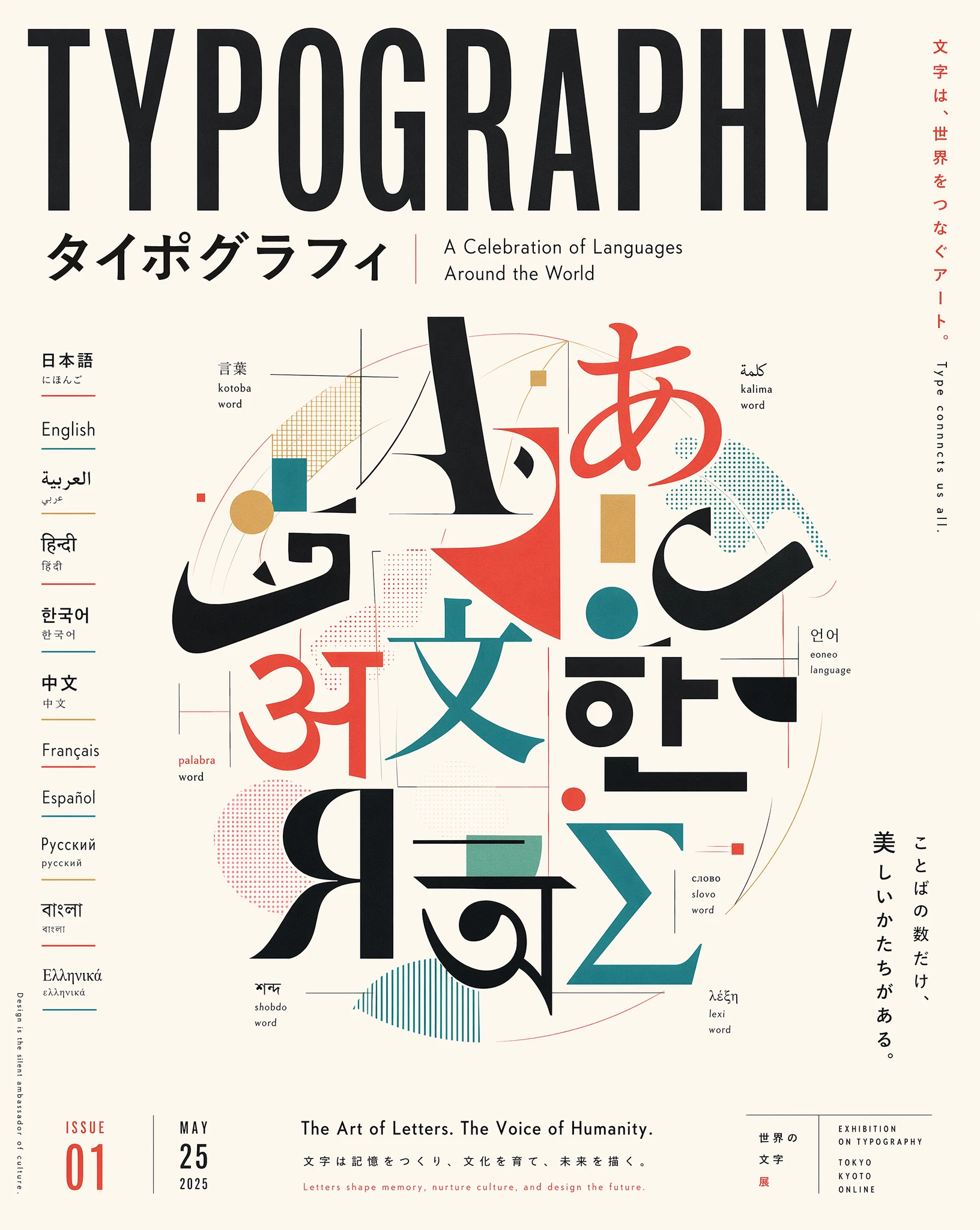
Here is a practical library of worked examples you can adapt directly. Each prompt follows the five-slot template and is designed for a specific marketing use case.
Example 1: Product Launch Hero Image for a SaaS Landing Page
Goal: A hero image showing the product dashboard on a laptop in a lifestyle context.
Scene: A bright, minimal co-working space, mid-morning, large windows with soft natural light, blurred greenery visible outside, light wood desk surface.
Subject: A silver MacBook Pro open at 100 degrees, screen showing a clean SaaS analytics dashboard with a dark sidebar, white content area, and colorful bar charts, no readable text on screen.
Important details: Natural light from the left, soft shadow under the laptop, slight reflection on the screen surface, shot from slightly above at a 25-degree angle, 50mm lens feel, warm-neutral color grading, shallow depth of field on the background.
Use case: Hero image for a SaaS product landing page, landscape 16:9 format.
Constraints: No people in frame, no additional objects on desk, no readable text on screen, no watermark, no brand logos other than the Apple logo on the laptop lid.
Example 2: Founder Portrait in a Branded Editorial Style
Goal: A professional but approachable portrait for a founder's About page or press kit.
Scene: A modern office with exposed brick wall, warm ambient lighting, slightly blurred background, late afternoon feel.
Subject: A 40-something white man in a charcoal merino crewneck, seated casually on the edge of a desk, arms relaxed, looking directly at camera with a neutral-confident expression.
Important details: Single soft key light from the left at 45 degrees, slight fill from the right, warm color temperature, shot at eye level, 85mm portrait lens feel, natural skin tones, slight bokeh on the background.
Use case: Editorial portrait for a founder About page and press kit, portrait 4:5 format.
Constraints: No artificial-looking retouching, no stock photo feel, no props, no text, no watermark, preserve natural skin texture.
Example 3: Social Media Ad Creative with Text Overlay
Goal: A LinkedIn ad creative with a headline rendered inside the image.
Scene: Deep navy blue gradient background, full bleed, no texture or pattern.
Subject: Bold white headline text reading "Your pipeline. Automated." centered in the upper two-thirds of the image, below it a smaller subheadline in light gray reading "Try it free for 14 days."
Important details: Clean typographic layout, geometric sans-serif font, headline at approximately 45% of image width, subheadline at 30% of image width, generous line spacing, no decorative elements.
Use case: LinkedIn sponsored content ad creative, 1200x628px landscape format.
Constraints: No additional text, no icons, no illustrations, no watermark, all text must be correctly spelled and fully readable.
Example 4: Concept Illustration for a Blog Post or Pitch Deck
Goal: An abstract concept illustration representing data privacy for a blog post header.
Scene: Abstract digital environment, dark background with deep blue and teal tones, subtle grid pattern suggesting a network or data layer.
Subject: A glowing padlock icon at the center, surrounded by flowing data streams represented as thin luminous lines converging toward the lock.
Important details: Soft glow effect on the padlock, data streams in gradient from teal to white, slight depth with foreground streams sharper than background, flat-to-semi-3D illustration style, no photorealism.
Use case: Concept illustration for a blog post header and pitch deck slide, landscape 16:9 format.
Constraints: No text, no brand logos, no human figures, no watermark, keep the color palette to dark navy, teal, and white only.
Before-and-After Prompt Comparison
Scenario: Social proof section image showing a happy customer using a product.
Before (weak prompt):
A happy customer using our app on their phone, beautiful, natural, authentic feeling, photoreal.
After (structured prompt):
Scene: A bright kitchen with white cabinets, morning light from a window to the right, marble countertop surface.
Subject: A 30-something South Asian woman in a light gray t-shirt, standing at the kitchen counter, holding a white iPhone at chest height, looking at the screen with a relaxed smile.
Important details: Natural window light from the right, soft shadow on the left side of her face, shot at eye level, 50mm lens feel, warm-neutral color grading, slight bokeh on the background cabinets.
Use case: Lifestyle photo for a SaaS website social proof section, landscape 3:2 format.
Constraints: No visible app content on the phone screen, no additional people, no text overlays, no watermark, preserve natural skin tones.
The structured prompt gives you a specific person, a specific environment, a specific lighting setup, and clear constraints. The weak prompt gives the model creative latitude it will use in ways you cannot predict.
Frequently Asked Questions About ChatGPT Image 2.0 Prompting
Does Image 2.0 work better with longer or shorter prompts?
Longer prompts outperform shorter ones when the length comes from specific visual details rather than repeated adjectives. A 200-word prompt that fills all five slots with precise information will consistently outperform a 50-word prompt full of vague praise. However, a 50-word prompt with precise visual facts will outperform a 300-word prompt padded with "stunning," "beautiful," and "ultra-detailed." Length is not the variable. Specificity is.
Can I use reference images alongside my text prompt?
Yes. Image 2.0 supports multimodal input, meaning you can provide one or more reference images alongside your text prompt. This is particularly useful for style consistency, character consistency across multiple images, and product mockups where you want the model to match an existing visual. When using reference images, your text prompt should focus on what to change or add rather than re-describing what is already visible in the reference. For more on how AI tools handle visual input, Google's overview of multimodal AI provides useful context.
Why does my prompt work once but give inconsistent results on repeat?
Image 2.0 has inherent stochasticity, meaning it introduces randomness into each generation even with identical prompts. This is by design and is what prevents every output from looking identical. To reduce inconsistency, tighten your Constraints slot, be more specific in your Important Details slot, and use the seed parameter if you are accessing the model via API. For production marketing assets, plan to generate three to five variations and select the best rather than expecting a single generation to be final.
What image sizes and quality settings should I use for marketing assets?
For most marketing use cases, the following settings apply when using the API via fal.ai:
- Social media ads:
landscape_4_3orlandscape_16_9, quality:high - Product mockups:
square_1_1, quality:high - Editorial portraits:
portrait_4_5orportrait_3_4, quality:high - Blog post headers:
landscape_16_9, quality:standard(faster iteration) - Output format: PNG for assets with text or sharp edges, JPEG for photographic content
Always generate at the highest quality setting for final assets. Use standard quality for iteration and exploration.
How is Image 2.0 different from Midjourney or Adobe Firefly for commercial use?
Each tool has a different strength profile. Midjourney excels at artistic and stylized outputs, particularly for editorial illustration and concept art, but its instruction-following for precise commercial requirements is weaker than Image 2.0. Adobe Firefly is trained exclusively on licensed content, making it the safest choice for commercial use from a copyright standpoint, and it integrates directly with Adobe Creative Cloud. Image 2.0 sits between the two: stronger instruction-following than Midjourney for structured commercial prompts, better photorealism than Firefly, and increasingly viable for commercial use under OpenAI's usage policies. For founders and marketers who need fast iteration on structured marketing assets, Image 2.0's prompt-following precision is its primary advantage. For teams already in the Adobe ecosystem, Firefly's integration may outweigh the quality difference.
Putting It All Together
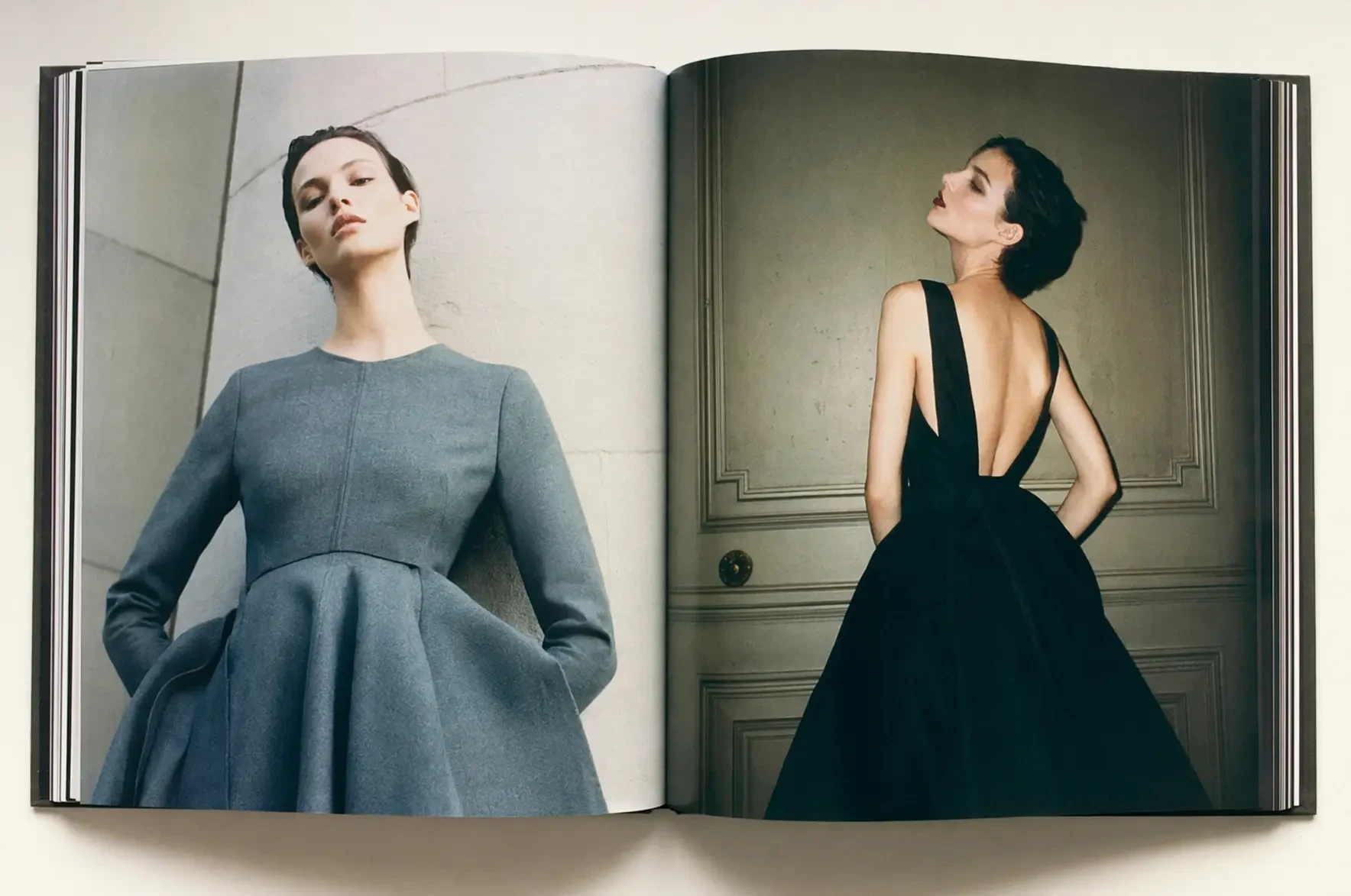
The shift from DALL-E 3 to Image 2.0 is not just a quality upgrade. It is a change in how the model expects to be communicated with. The prompts that worked before were written for a model that filled in gaps creatively. Image 2.0 is a model that follows instructions precisely, which means the quality of your output is now directly proportional to the quality of your instructions.
The five-slot framework (Scene, Subject, Important Details, Use Case, Constraints) gives you a repeatable structure that works across every image type you will need as a founder or marketer. The anti-slop rules eliminate the language patterns that waste token space and introduce ambiguity. The three editing modes give you the right tool for each task, whether you are generating from scratch, refining an existing asset, or making surgical changes to a specific region.
If you want to understand how your existing marketing content reads and performs before you invest in visual assets to support it, TryReadable's content analysis tool can help you identify where your messaging needs clarity. And if you are building a content system that includes AI-generated visuals alongside written content, our guides cover the broader workflow.
For teams that want to see how structured prompting fits into a larger content and brand strategy, book a demo to see how TryReadable supports the full content pipeline.
The model rewards structure. Give it structure, and it will give you images worth using.
Sources
- GPT Image 2 Prompting Guide and Examples | fal.ai
- 15 ChatGPT Photo Editing Prompts for 2025
- Google Search Central documentation
- Google AI Overviews documentation
- OpenAI announcement archive
- Anthropic documentation
- Schema.org structured data vocabulary
- W3C JSON-LD specification
- Google Analytics developer docs
- NIST AI Risk Management Framework
Are your AI-generated visuals losing consistency across campaigns?
Learn the structured prompting framework that transforms vague briefs into on-brand, photorealistic assets your team can actually use without a designer.